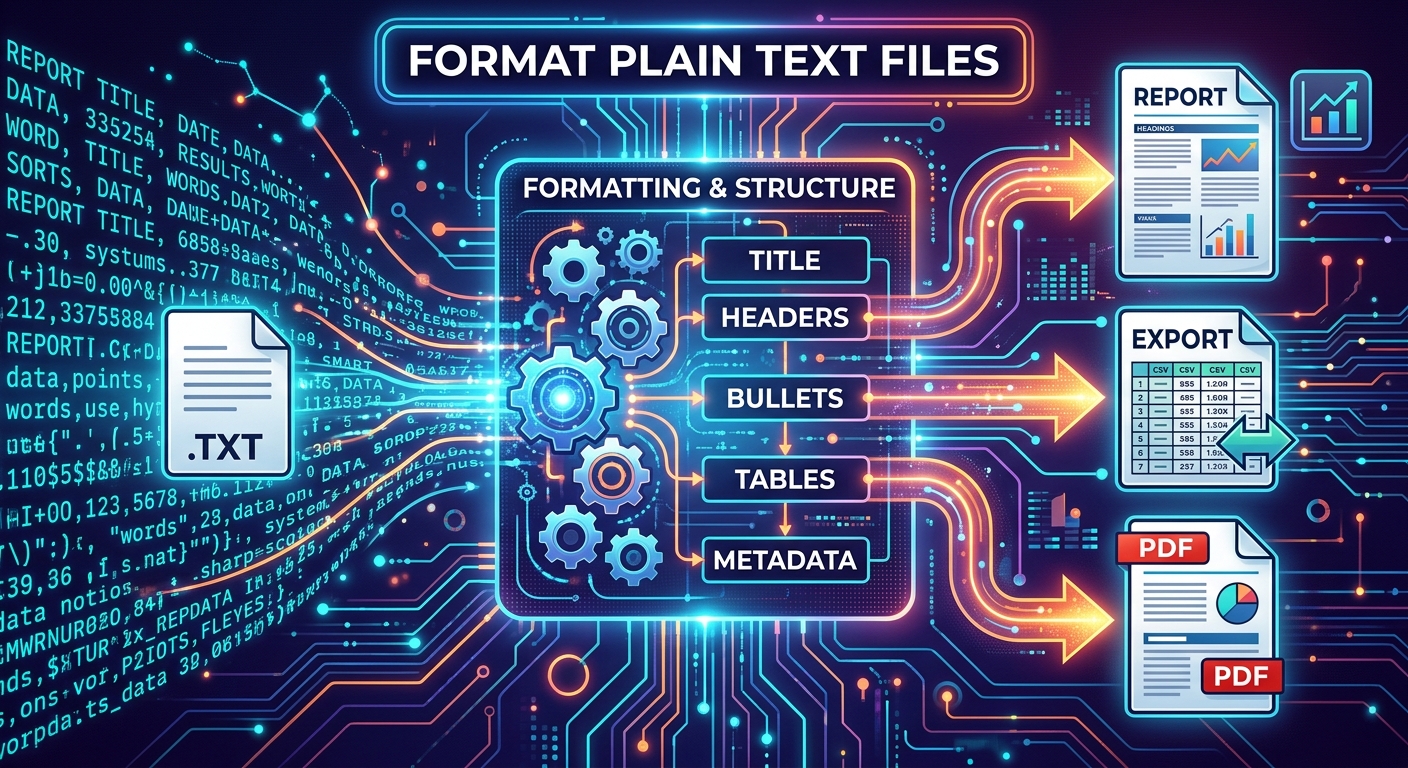
Plain text files look deceptively simple. Open one and you get rows of words, numbers, maybe some commas. But the moment you try to use that file for something real , a CSV import, a polished report, a document you need to share , the cracks appear fast. Columns don't align. Casing looks inconsistent. The layout that made sense in Notepad turns into something unreadable in a spreadsheet or a client email.
That gap between a raw text file and something you can actually send to someone is what this guide covers. You'll walk through the whole path: cleaning messy input, fixing delimiters, correcting casing, and finally converting your finished file into a format that holds its shape no matter where it lands.
- How to identify and fix the most common raw text problems before anything else
- Which delimiters to use for spreadsheets, databases, and web exports
- When and how to apply different casing styles for different audiences
- How to structure plain text content for internal reports and web copy
- How to lock your final file into a portable, layout-stable format for sharing
Why Raw Text Files Almost Always Need Work First
Text files arrive from all kinds of places. A CRM export. A copy-paste from a web page. A log file from a server. An email thread someone scraped into a .txt document. Each source has its own habits: different line endings, different spacing conventions, different ideas about what a "column" even is.
That inconsistency is the root of most formatting problems. The content might be correct, but the structure around it is unreliable. You cannot import a file into Excel if the delimiter shifts from commas to spaces halfway through. You cannot publish web copy if some lines are in ALL CAPS and others are in sentence case. Cleaning up that structure is step one, not an afterthought.
Cleaning Raw Input: The Foundation of Every Formatted File
Before fixing anything structural, take a pass at the raw content itself. This is where most time gets wasted later if you skip it now.
Common problems to address at this stage:
- Extra blank lines or double spacing between records
- Trailing spaces at the end of lines that break field matching
- Invisible characters from copy-paste (non-breaking spaces, zero-width spaces)
- Inconsistent line endings (Windows uses \r\n, Unix uses \n, and older Mac files use \r)
- Duplicate rows, especially common in data exports
Most text editors let you find and replace specific characters. For larger files, a free online text cleaning tool handles it without writing a single line of code. The goal is a clean, uniform base to build from before moving to anything else.
Getting Delimiters Right for Spreadsheets and Data Exports
A delimiter is the character that separates one field from another in a flat file. Comma, tab, pipe, semicolon. They all work in theory. In practice, the right choice depends entirely on what your data contains and where it is going.
Commas are the default for most CSV files. But if your data includes addresses, product descriptions, or any freeform text with natural commas in it, a comma delimiter breaks the file instantly. Switch to a tab or pipe character instead.
Fields with embedded commas or quotes have their own handling rules, as documented in the IETF's CSV format specification. The problem is that many tools interpret these rules differently. That is exactly why knowing your delimiter options matters more than trusting software to sort it out on the receiving end.
Delimiter Choices for Different Output Destinations
| Destination | Best Delimiter | Why It Works |
|---|---|---|
| Excel / Google Sheets | Comma or Tab | Both are natively supported; tab is safer with descriptive text data |
| Database import | Pipe or Tab | Avoids conflict with commas in numeric, address, or currency fields |
| Web or API payload | Tab or custom character | Depends on the receiving system's parser configuration |
| Internal report or PDF | Fixed-width spacing or prose | Delimiters become irrelevant once you control the final layout |
Fixing Text Case for the Right Audience
Casing is one of those things that looks minor until it ruins a document. Report headers in all lowercase look careless. Body copy in Title Case reads like a restaurant menu. Getting this right is part of formatting, not editing.
Here is how different casing styles map to real use cases:
- Title case for headings, column headers, report sections, and any displayed label that needs to carry authority
- Sentence case for web copy, blog content, UI labels, and anywhere you want text to feel conversational and readable
- ALL CAPS for abbreviations, acronyms, and emphasis in display headings only, never for body text
- lowercase for URL slugs, code identifiers, and filenames to prevent path-casing conflicts across systems
- camelCase or snake_case for developers working with variable names, API keys, or database column labels
If your text file mixes these styles inconsistently, a case conversion tool will save a significant amount of manual work. Paste in the content, choose the target case, copy the result back. The whole operation takes about ten seconds per block of text.
Structuring Plain Text Content for Internal Reports
Plain text files used for internal reports have a different set of requirements than data exports. The data still needs to be clean, but readability matters now too. You are not just feeding a machine. A person is going to read this, probably under time pressure.
Use consistent spacing between sections. Decide upfront whether you are using commas in large numbers (1,000 or 1000) and stick to it. Inconsistency in a report undermines credibility faster than a typo.
Column alignment matters too. If your file mimics a table with product names, quantities, and prices laid out across a line, use tabs or fixed-width spacing rather than variable spaces. That way, when the file lands in a monospace viewer or gets pasted into a report template, the columns actually line up instead of drifting.
Preparing Web Copy That Came From a Plain Text Draft
Content writers often draft in plain text before pasting into a CMS. That workflow makes sense. Plain text is portable, lightweight, and editor-agnostic. But it needs a bit of cleanup before it is ready for the web.
Smart quotes, curly apostrophes, and special characters can cause encoding problems when pasted into HTML forms or Markdown editors. Replace them with straight quotes or their proper HTML entities. Strip out any hidden formatting that crept in from a word processor, including manual line breaks, non-standard hyphens, and embedded page-break characters.
Also check your paragraph breaks. Many CMS platforms treat a single line break as no break at all, while others treat it as a full paragraph. Know your target system and format accordingly before pasting anything in. A quick preview in the CMS before publishing catches most of these issues immediately.
Turning a Finished Text File Into a Document You Can Share
At some point, the file is done. The data is clean, the casing is right, the structure makes sense. Now you need to actually share it with someone.
Sending a raw .txt file to a client or stakeholder is risky. It might open differently on their machine. The font could shift. Line lengths might wrap in unexpected places. A file that looks clean on your screen can arrive looking broken on theirs, depending on their operating system, text editor defaults, or screen resolution.
This is where converting to a layout-locked format makes the most sense. PDF is the right choice because it preserves your formatting exactly as you left it. No fonts shifting. No line breaks moving. The recipient sees exactly what you intended, every time.
If you do not have a PDF editor installed, text to PDF conversion works directly in the browser without installing anything. Upload the finished file, convert it, download the result. The PDF holds the structure you built and travels cleanly to any inbox or shared folder, on any device.
The Full Formatting Sequence at a Glance
Plain text formatting works best as a pipeline, not a single action. Each stage builds on the one before it. Skipping a step early means doubling back later, which is where most time gets wasted.
Start with raw cleaning: whitespace, duplicates, encoding. Move to structural fixes: delimiters, line endings, paragraph breaks. Apply casing rules based on your target audience. Structure the content for its destination, whether that is a spreadsheet, a report, or a web page. Then, once the file is solid, lock it into the format you need for sharing.
That sequence applies whether you are handling a 50-line product list or a 5,000-row data export. The steps are the same. Only the tools and the time required change.
From Raw Lines to a Document That Does Its Job
A plain text file at its worst is a string of characters with no context and no structure. At its best, it is clean, precise, and ready to move from one system to the next without anyone having to fix it at the other end.
The formatting work described here is not busywork. It is the difference between data that gets used and data that sits in someone's downloads folder because it looked too messy to bother with. Clean input, correct delimiters, consistent casing, and a stable output format are what turn raw text into something people can open, trust, and act on.
None of it requires expensive software or deep technical knowledge. Free tools exist for every step. The workflow is repeatable once you have done it a few times. The hardest part is usually just committing to doing it in order, rather than jumping straight to the end and wondering why things do not look right when they get there.